
How to Find Search History on iPad Before You Clear It
Learn where to find search history on iPad before deleting it, including Safari history, Chrome history, Google account activity, and YouTube history.
How to Find Search History on iPad Before You Clear It
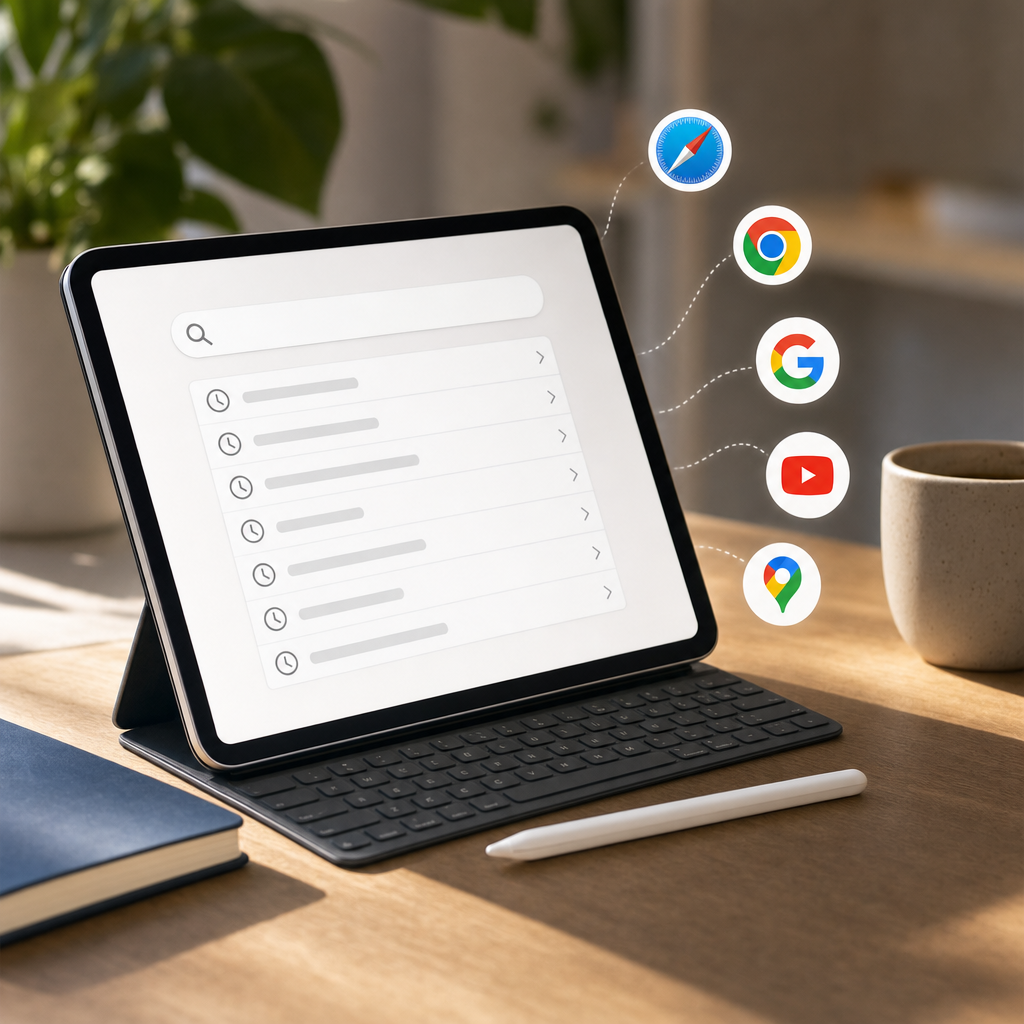
Before you delete search history on an iPad, it helps to know where that history is stored. iPad activity can appear in Safari, Chrome, the Google app, YouTube, Google Maps, and your Google account.
If you only check one place, you may miss other saved searches. This guide explains where to look before clearing anything.
Quick Answer
To find search history on iPad, check these places:
- Safari browsing history
- Chrome browsing history
- Google Search history
- Google My Activity
- YouTube search and watch history
- Google Maps history
- Search suggestions in the browser address bar
Once you know where activity is stored, you can delete the correct data instead of clearing everything blindly.
How to Find Safari History on iPad
Safari is the default browser on iPad.
To view Safari history:
- Open Safari.
- Tap the bookmarks icon.
- Open the History section.
- Review the websites and searches shown.
Safari history can include pages opened from Google Search, direct website visits, and some searches typed into the address bar.
If your goal is to delete Safari data, see how to clear Safari browser history.
How to Find Chrome History on iPad
If you use Chrome:
- Open Chrome.
- Tap the three-dot menu.
- Tap History.
- Review the saved browsing list.
Chrome history on iPad can include sites visited from Google searches, search result pages, and pages opened from other apps.
For a broader cleanup, read how to clear Google Chrome on iOS browser history.
How to Find Google Search History on iPad
Google search history may be saved to your Google account if you are signed in.
To find it:
- Open the Google app, Safari, or Chrome.
- Go to Google.
- Tap your profile picture.
- Tap Search history.
- Review recent search activity.
You can also visit Google My Activity to see account-level activity across devices.
For deletion steps, see how to clear Google Search history on iPad.
How to Find YouTube History on iPad
YouTube has separate search and watch history.
- Open YouTube.
- Tap your profile picture.
- Open Settings.
- Go to Manage all history.
- Review YouTube activity.
This is useful because many users search directly inside YouTube instead of Google.
You may also want to read how to delete YouTube search history.
How to Find Google Maps History on iPad
Google Maps can store place searches and direction activity.
- Open Google Maps.
- Tap your profile picture.
- Tap Settings.
- Open Maps history.
- Review saved activity.
Maps history may include addresses, businesses, routes, and places searched.
Why You May Not See Any History
If you cannot find search history, common reasons include:
- Private Browsing was used.
- Incognito Mode was used.
- History was already deleted.
- The browser is not syncing.
- You are signed into a different Google account.
- Screen Time or device management restrictions apply.
Private browsing can reduce local history storage, but it does not make activity invisible to every service. See what Incognito Mode really does.
Should You Check Before Clearing History?
Yes, especially if you need to keep useful links, recover a website you visited, or understand which app saved the activity.
Before deleting, consider saving:
- Important websites
- Login pages
- research links
- receipts
- downloaded documents
Once history is deleted, recovery is often difficult.
Related Guides
- How do I clear my iPad search history?
- How to see your Google Search history and delete it
- Why clearing your history does not clear everything
Final Thoughts
Search history on iPad can be stored in several places. Check Safari, Chrome, Google activity, YouTube, and Maps before clearing anything. This helps you delete the right information while keeping anything important.
Keep reading
Related posts

How to Clear Search Recommendations
Learn how to clear search recommendations in browsers, Google, YouTube, Instagram, Facebook, TikTok, and other apps by managing history, cookies, and account activity.

How to Check Incognito History on Any Device
Learn whether Incognito history can be checked on phones, tablets, computers, routers, Google accounts, and managed school or work devices.

How to Erase Incognito History Permanently
Learn how to permanently erase Incognito-related traces by closing private tabs, deleting account activity, removing downloads, and clearing browser data.